Opening a map shows its board. Each card is one page of your application, and each arrow is a way a user moves from one page to the next.
Getting around#
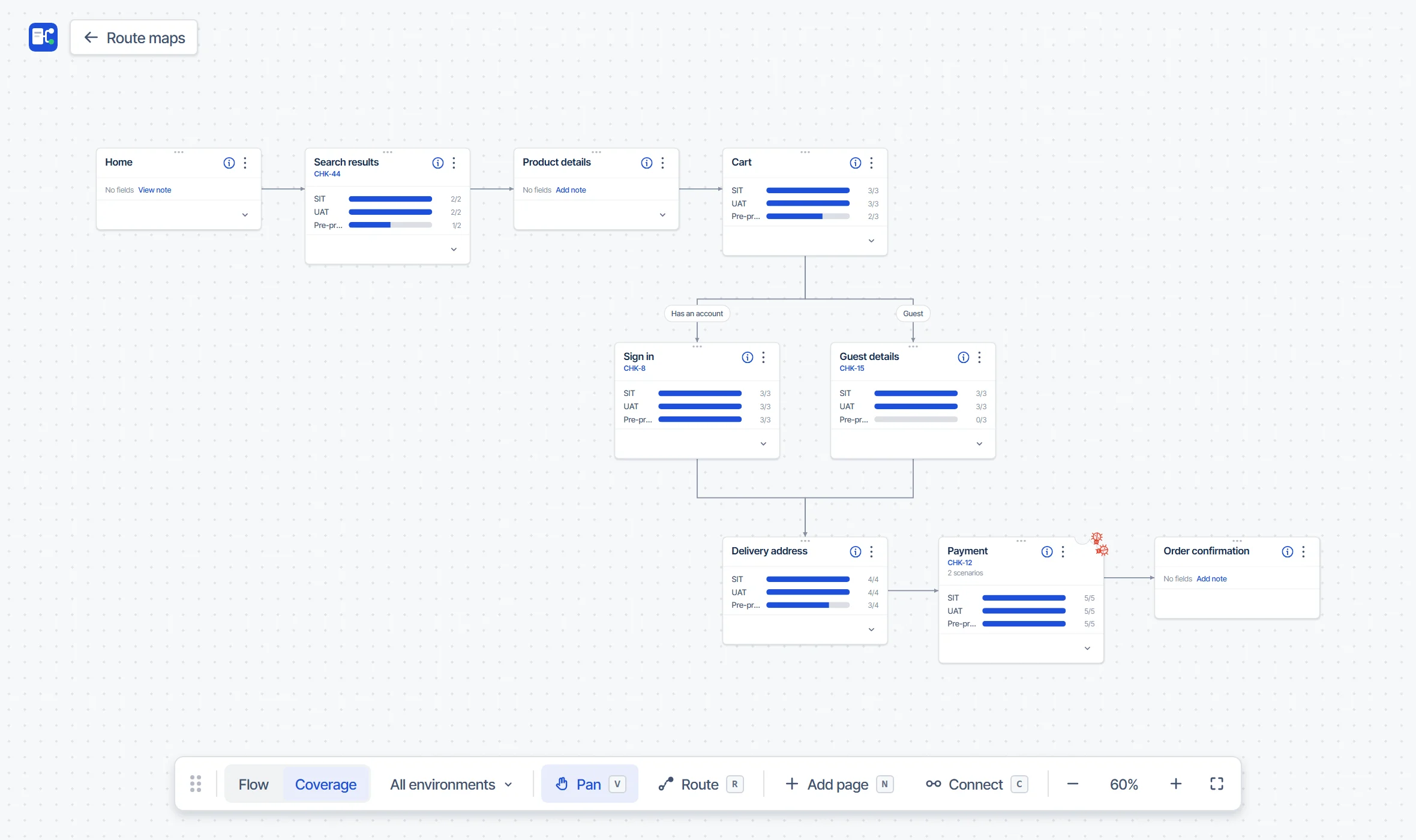
- Route maps at the top left goes back to Home.
- Drag an empty part of the board, or scroll, to move around. Hold Shift while scrolling to move sideways, and Ctrl (⌘ on a Mac) to zoom.
- The pictures of people in the top right corner show who else has the map open right now.
- Everything saves as you go; there is no Save button. Changes other people make appear on your screen by themselves, within seconds.
- Ctrl Z (⌘ Z) undoes your last change, and Ctrl Y puts it back. Undo only ever undoes your own changes, never someone else's.
The toolbar#

The toolbar sits at the bottom of the board. Drag the dots on its left to move it.
| Button | What it does |
|---|---|
| Flow / Coverage | Flow shows only page names and arrows. Coverage also shows how much test data each page has. |
| All environments | Chooses which environments the cards show. See Environments. |
| Pan (V) | Moves around the board. The toolbar returns to it after other tools. |
| Route (R) | Adds up the test data along a path through the map. See Follow a route. |
| Add page (N) | Adds a new page to the board. |
| Connect (C) | Draws an arrow from one page to another. |
| − 60% + | Zooms out and in. The number is the current zoom. |
| Frame icon | Fits every page on the screen. |
Two kinds of page#
- An entry page needs data to get through, such as a login form or a payment page. It has fields and shows a coverage bar for each environment.
- A view page only shows something, such as a home page or an order confirmation. It has no fields and no bars, is left out of every total, and can still hold a note.
Change a page's kind from its ⋮ menu. Turning an entry page that has fields into a view page asks first, because its fields and their values are removed.
Add a page#
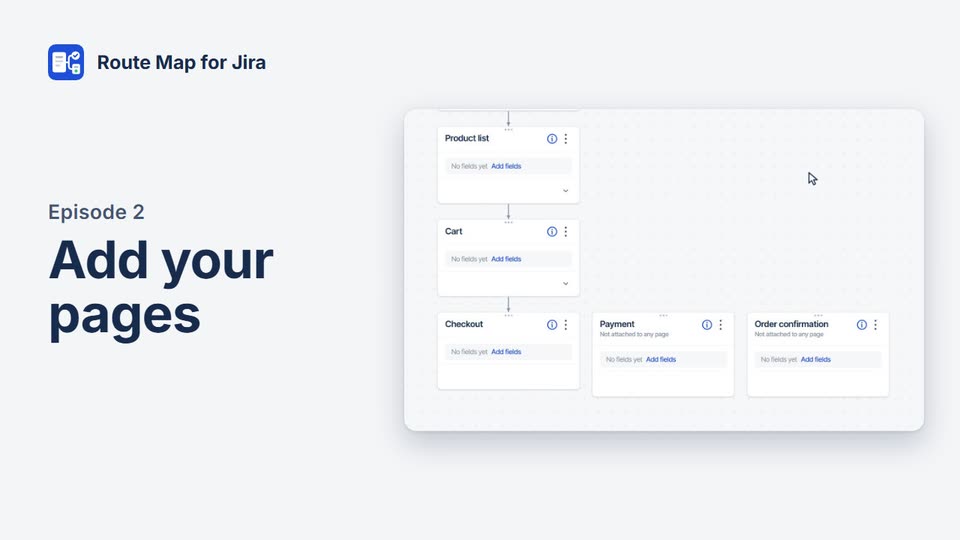
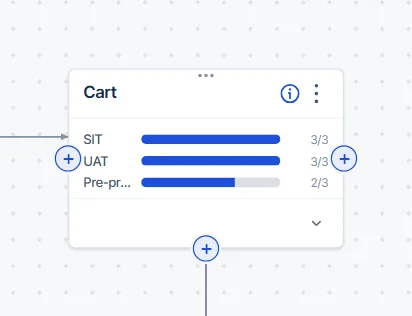
- Click Add page on the toolbar, or press N.
- Or point at a card and use one of the small + buttons on its edges: the one at the bottom adds the page that comes next, with an arrow already drawn to it; the ones on the left and right add a page beside it, at the same step of the journey.
Type the new page's name and press Enter. Esc cancels and leaves the board as it was.
Move a page#
Drag a card by its top edge. Only that card moves, and its arrows follow it.
Note
Position never means structure. Moving a card never changes which page leads to which: that changes only when you connect or disconnect pages. A page drawn under another is not its next step unless an arrow says so. A page with no arrows at all says Not attached to any page under its name, unless it has a Jira story to show there.
The arrow at the bottom of a card hides or shows the pages that come after it, to keep a large map readable.
Connect pages#
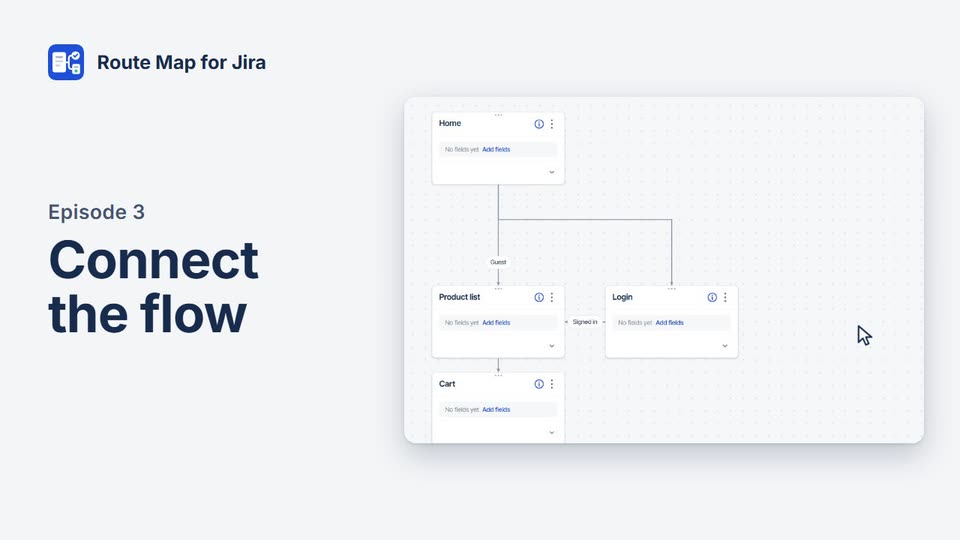
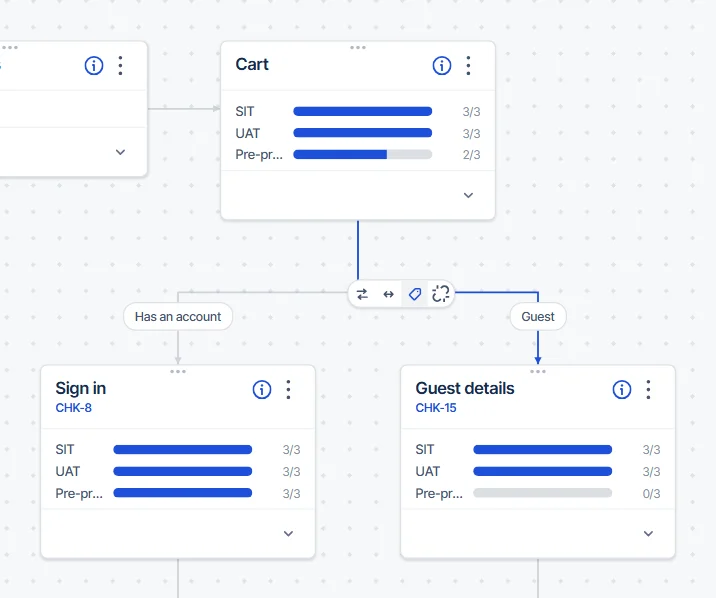
- Click Connect on the toolbar, or press C.
- Beside it, choose the direction: one way, two way, or one way back.
- Click the page the user comes from, then the page they go to.
- Connect more pairs the same way, then press Esc or click Pan when you are done.
Point at an arrow to change it. A small bar appears on it with four buttons: reverse the arrow, make it two way (or one way), add a condition, and remove it.
Conditions#
A condition is a short label on an arrow, up to 50 characters, such as "Guest" or "Out of stock", saying when a user takes that path. It is there for people to read; Route Map does not check it.
Read a page card#
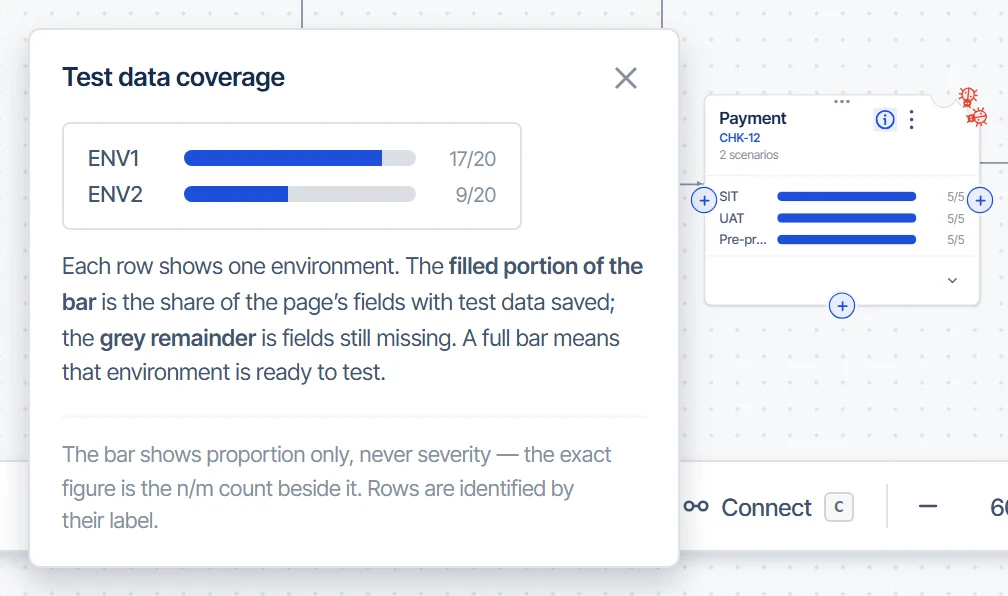
Every card tells you, at a glance, how ready that page is for testing.
- The page name is at the top. Under it is the Jira story the page belongs to, if it has one, and how many extra scenarios it has.
- In Coverage view there is one bar for each environment. The blue part is the fields that have a value there; the grey part is the fields still empty. 3/5 means three of the page's five fields have a value in that environment. A full bar means that environment is ready to test.
- No fields yet means nobody has said what the page needs. That is normal while you sketch a journey; Add fields is the next step.
- No fields marks a view page.
- Red bugs in the top right corner mean the page has open bugs in Jira. Click one to open it in Jira. They go away by themselves when the bug is closed.
- The ⓘ button explains what the card is showing.
- Click the bars to read the page's test data. See Pages and test data.
Coverage counts the values of the Default scenario only, so an unfinished scenario never makes a page look less ready. Colour carries one meaning on the board: blue has data, grey is missing. Environments are told apart by their names.
The ⋮ menu on a card#
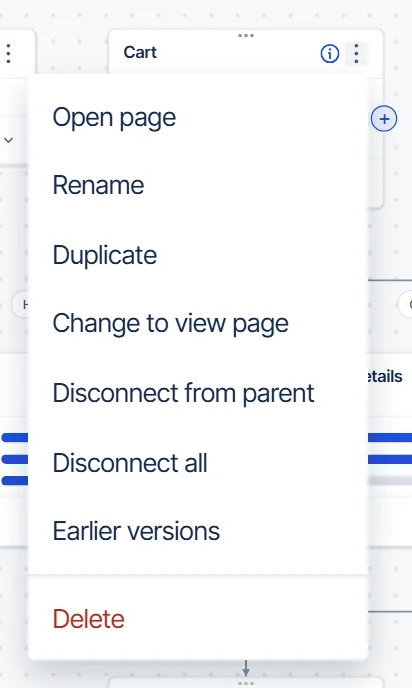
| Option | What it does |
|---|---|
| Open page | Shows the page's test data and linked Jira issues. |
| Rename | Changes the page's name, right on the card. |
| Duplicate | Places a copy of the page beside it, not connected to anything. |
| Change to view page | For a page with nothing to type in. If the page has fields, you are asked first, because they are removed. |
| Change to entry page | Turns a view page back into a page that needs test data. |
| Disconnect from parent / Disconnect all | Removes the page's arrows. The page itself stays. |
| Earlier versions | Shows the page as it was before its edits in the last 7 days, and puts one back. |
| Delete | Deletes the page after asking, and says what goes with it. |
When a page is deleted, the pages that came after it stay on the board, no longer connected. Undo appears for a few seconds, and the map's Settings › History can restore the page for 30 days.
Flow and Coverage#
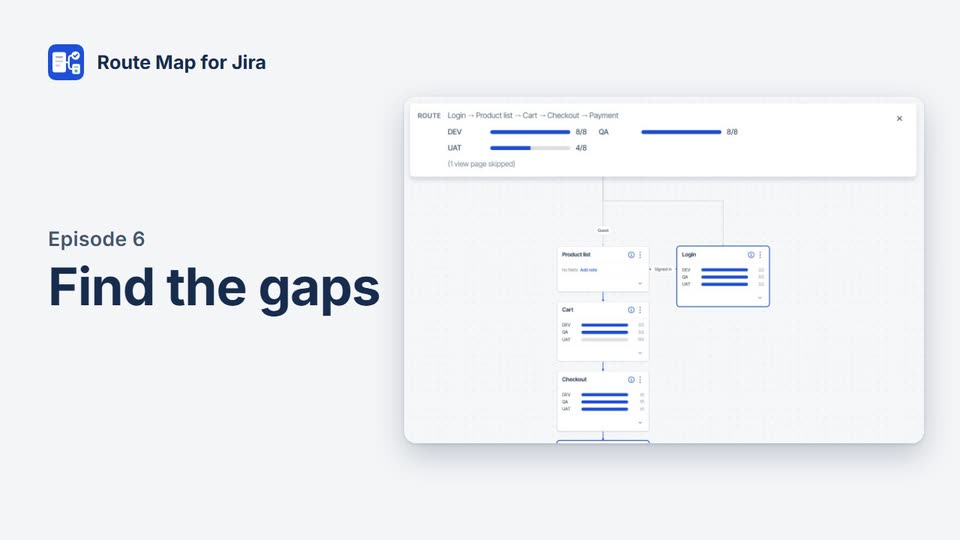
The first button on the toolbar switches between two views of the same map:
- Flow shows only page names and the arrows between them: the journey.
- Coverage adds, on each entry page, a bar for each environment, as described in Read a page card.
Follow a route#
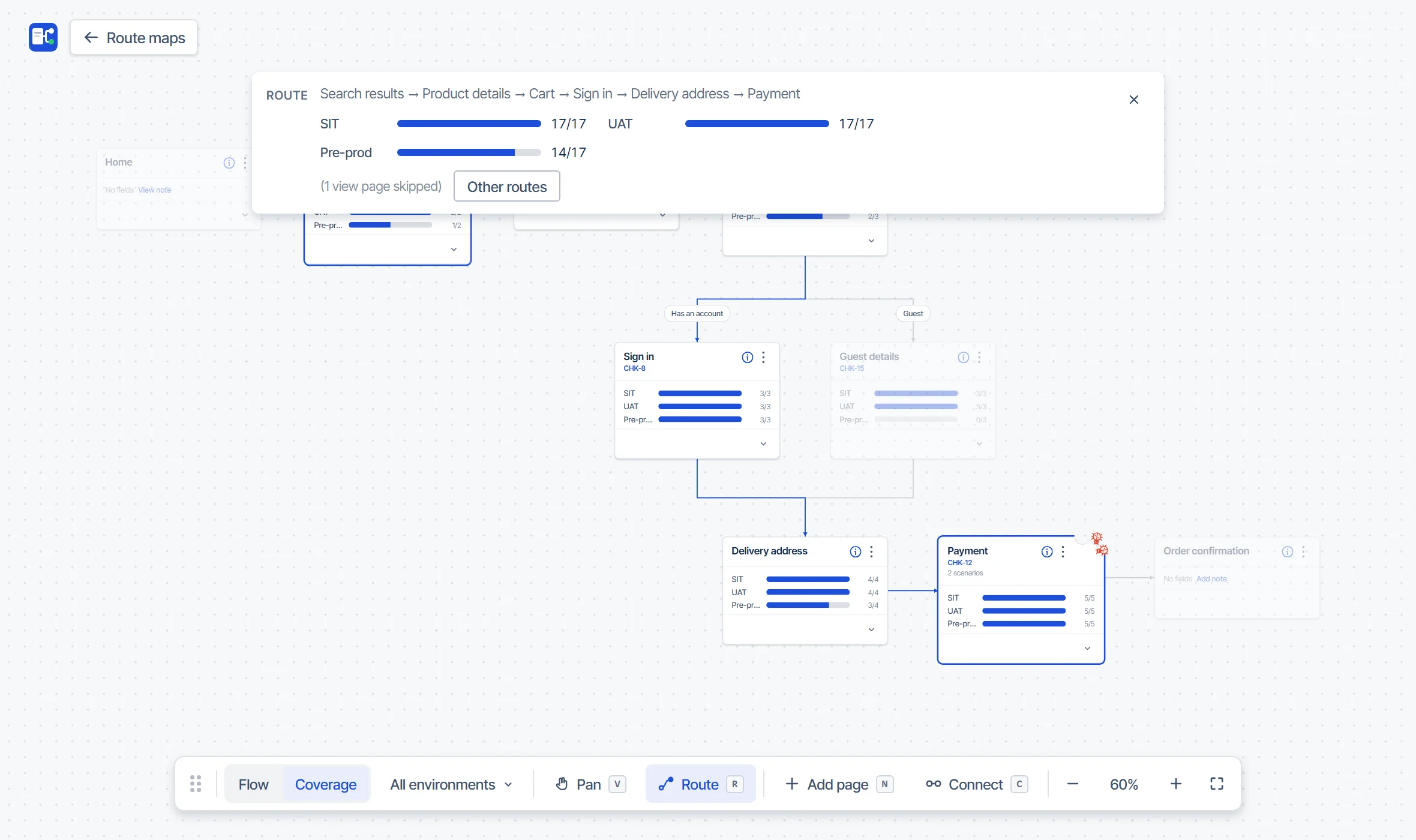
The Route tool tells you whether there is test data for a whole journey, not just one page.
- Click Route on the toolbar, or press R.
- Click the page the journey starts on, then the page it ends on.
- If more than one route joins them, pick one from the list. Other routes switches to another.
The strip at the top adds up the fields along the route for each environment, and says how many view pages it skipped. Pages that are not on the route fade out. Press Esc or ✕ to finish. Nothing is saved.
Working together#
Several people can work on a map at once. Changes appear on everyone's board within seconds, and moving a page never clashes with editing it. If two people change the content of the same page at the same moment, the second save is stopped and that person's edit screen reopens with both versions on it, so nothing typed is lost.
Keyboard shortcuts#
| Keys | What they do |
|---|---|
| N | Add a page |
| C | Connect two pages |
| R | Follow a route |
| V or Esc | Back to moving around the board |
| Ctrl Z | Undo your last change on the board |
| Ctrl Y | Redo it |
| Enter | Save a page name |
| Ctrl K | Jump to search on Home |
On a Mac, use ⌘ in place of Ctrl.