An environment is a place you test in, such as SIT, UAT or Pre-prod. Every page of a map holds a value for each of its fields in each environment, so a tester can pick the environment they are working in and find the data for it.
Each map has its own environments#
Environments belong to the map they are set up in. There is no site-wide list: two maps that both have a "UAT" have two separate environments, and renaming or deleting one changes that map only. A copy of a map made with Duplicate gets its own environments too.
Environments are told apart by their names, never by colour, so any number of them can be added.
Set them up#
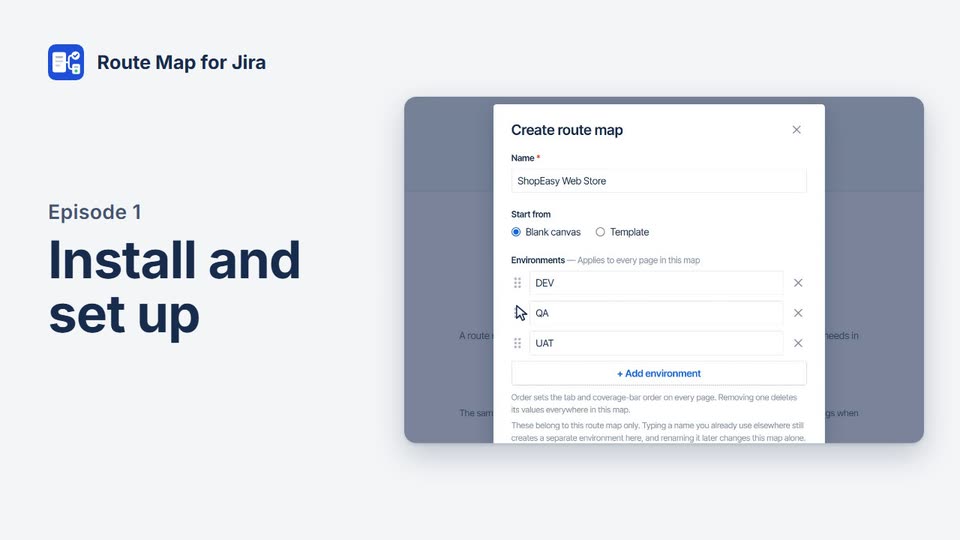
You type a map's environments when you create it: one per row under Environments in Create route map, with + Add environment for another row.
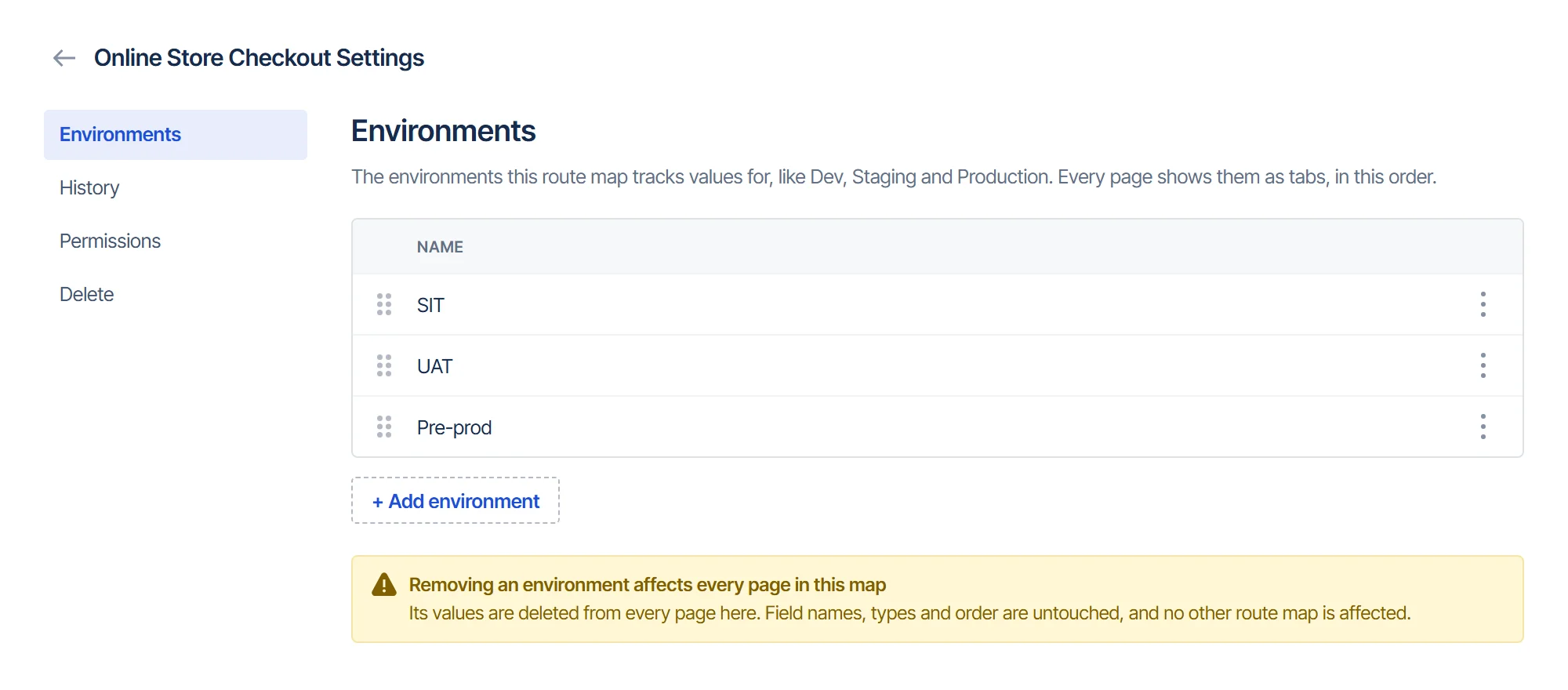
To change them later:
- On Home, open the map's ⋮ menu and choose Settings.
- Open Environments.
- Then: - + Add environment adds one. - The ⋮ menu on a row has Rename and Delete. Renaming keeps its values. - Drag the handle on the left of a row to change the order.
Their order matters#
The order here is the order everywhere else: the environment tabs on every page, and the coverage bars on every card. Put them in the order your releases move through, such as SIT, then UAT, then Pre-prod.
Deleting an environment#
Deleting an environment deletes its values from every page of this map, together with its status on each page. No other map is affected. Route Map asks first, and says what goes with it.
For 30 days after it is deleted, the environment and its values can be restored from the map's Settings › History. After that they are permanently deleted.
Who can change them#
By default, only the map's owner and admins can add, rename, reorder or delete its environments. Editors still fill in values in every environment.
The owner or an admin can change this in the map's Settings › Permissions, with Only owners and admins can change environments. It applies to that map only. Who counts as an admin is explained in Sharing and roles.
Use the same values in several environments#
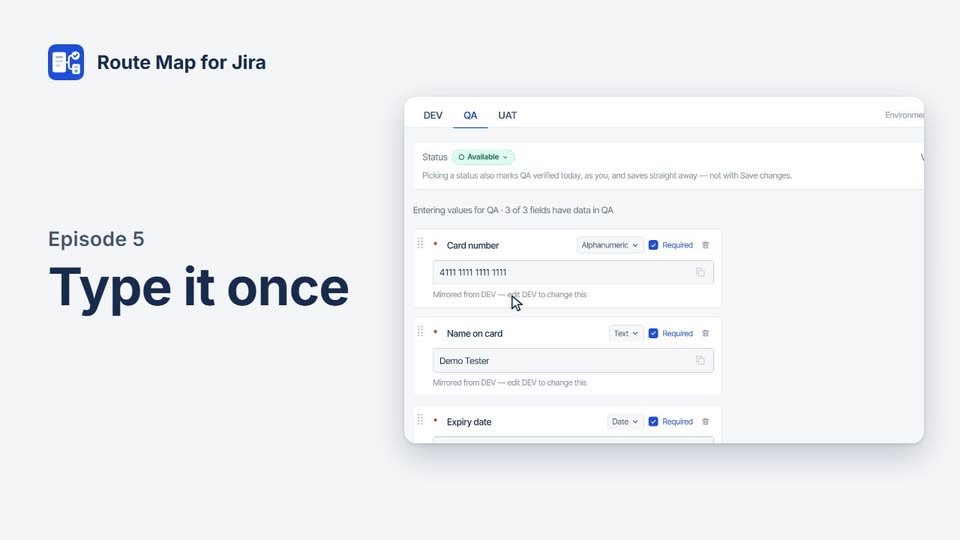
When two environments use exactly the same test data, Data same as keeps them the same without typing anything twice. See Pages and test data.
Show only some environments on the board#
On a map with many environments, click All environments on the board's toolbar and tick the ones you want to see. The cards then show only those. The percentage beside each environment is how complete it is across the whole map.
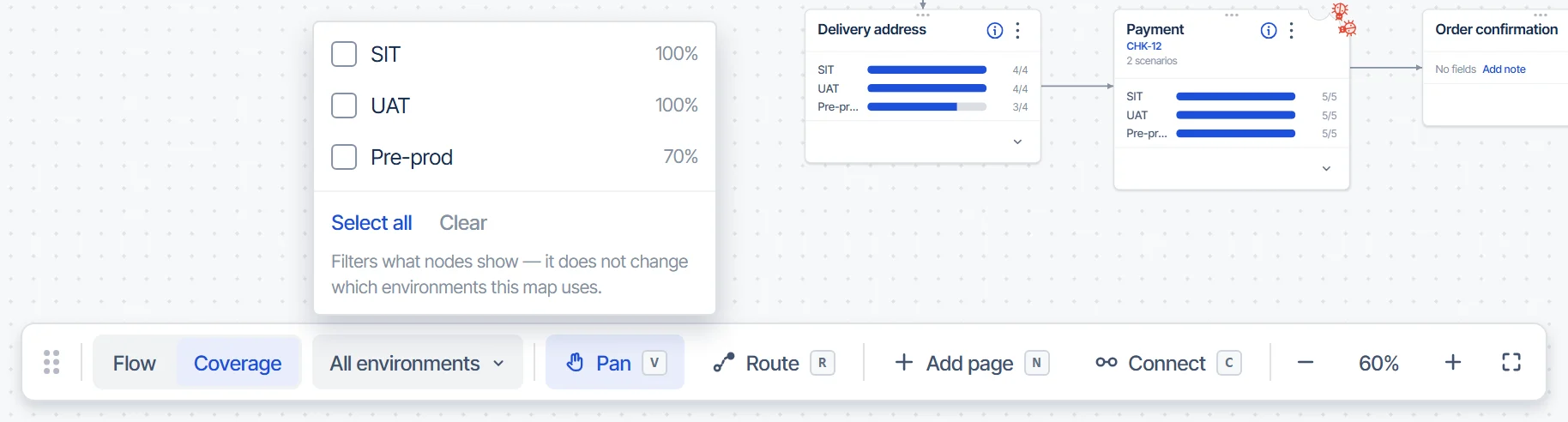
This changes only what you see. Other people still see every environment, and Route Map remembers your choice for that map. Clear shows them all again.