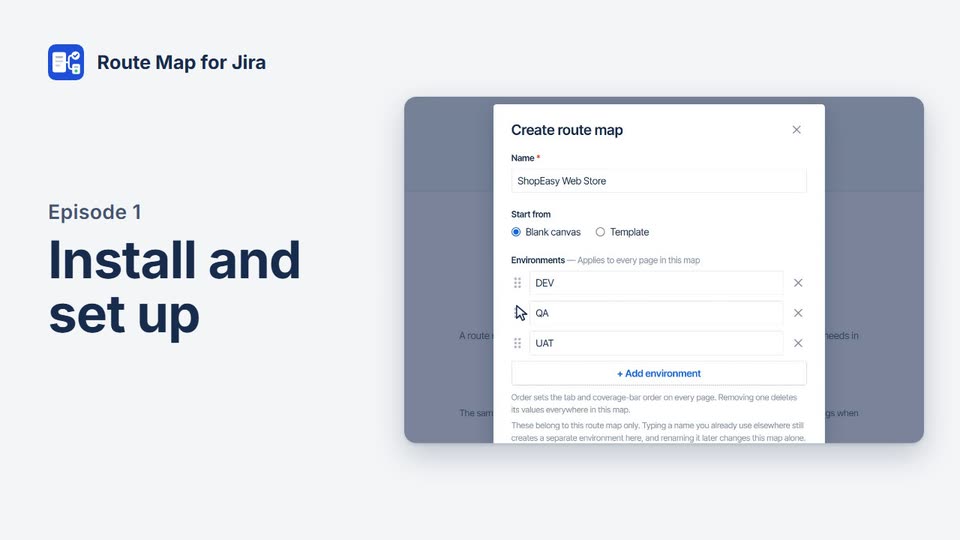
A Jira site admin installs Route Map once for the whole site:
- Open Route Map's listing on the Atlassian Marketplace. Or, in Jira, open Apps › Explore more apps and search for "Route Map".
- Follow the steps to start a trial or buy it. Atlassian handles trials, billing and the licence.
Not a Jira admin? Send your admin mapkari.com/admins. It covers what they need to approve the app.
After installing#
- Everyone on the site finds Route Map in Jira's Apps menu.
- Every Jira issue gets a Route map panel in its right-hand column. See The Jira issue panel.
- Jira lists the permissions the app was given. What each one is for is explained in App permissions.
If the subscription ends, Route Map becomes read-only: people can still open maps and copy values, but nothing can be created or changed until a Jira admin renews it. Nothing is deleted.
Learning the app#
Route Map has its own guide to every screen, with screenshots. Open Route Map and click the ? icon at the top of Home to open Help.
Short how-to videos, a minute or so each, are on the home page. Each one also appears in this documentation, under the heading it explains.
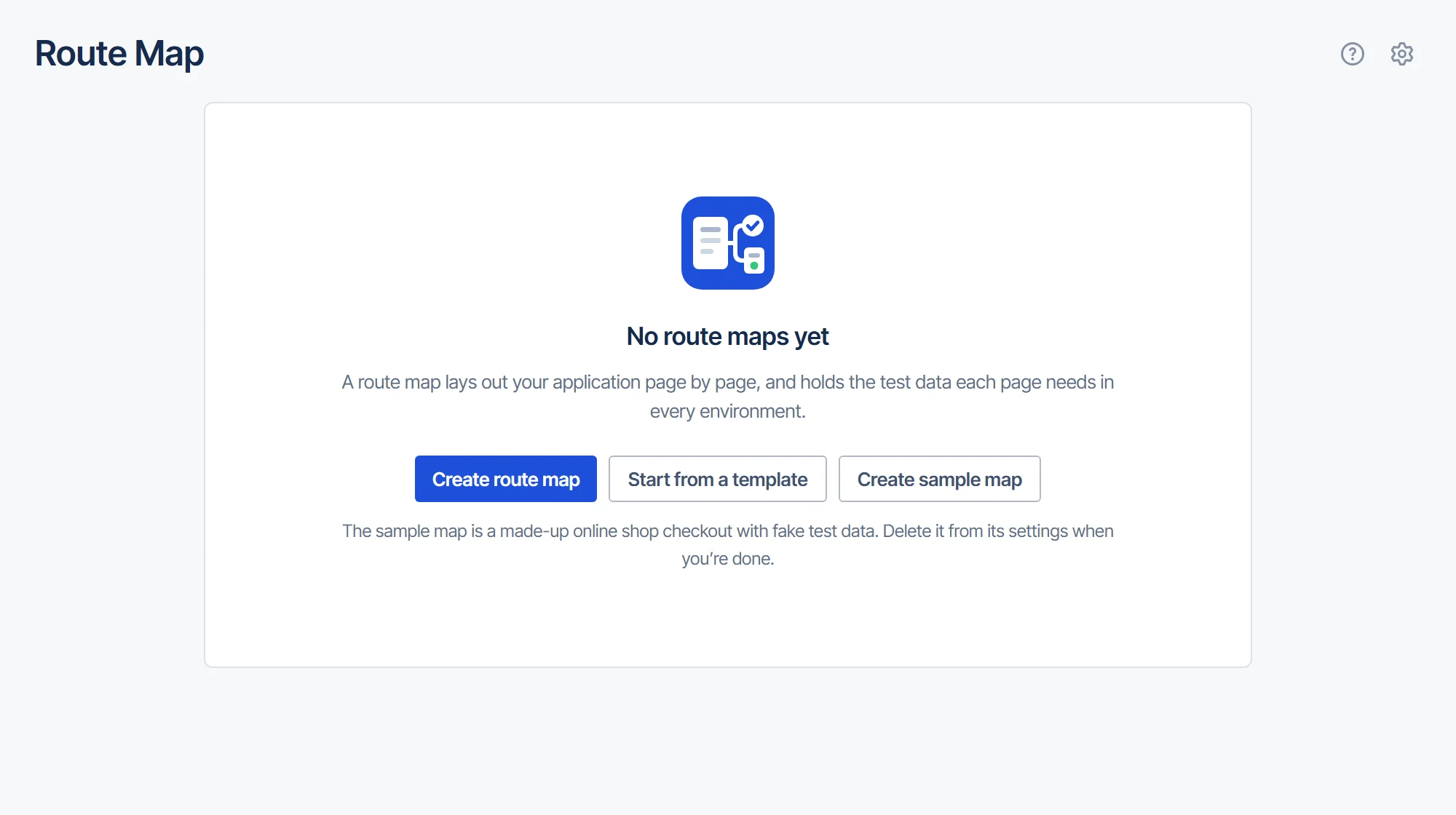
While you have no route maps, Home also offers Create sample map: a small, made-up online-shop checkout to look around in. It is yours alone; delete it from its Settings › Delete when you're done.
If you're stuck, contact support.