A new map is private#
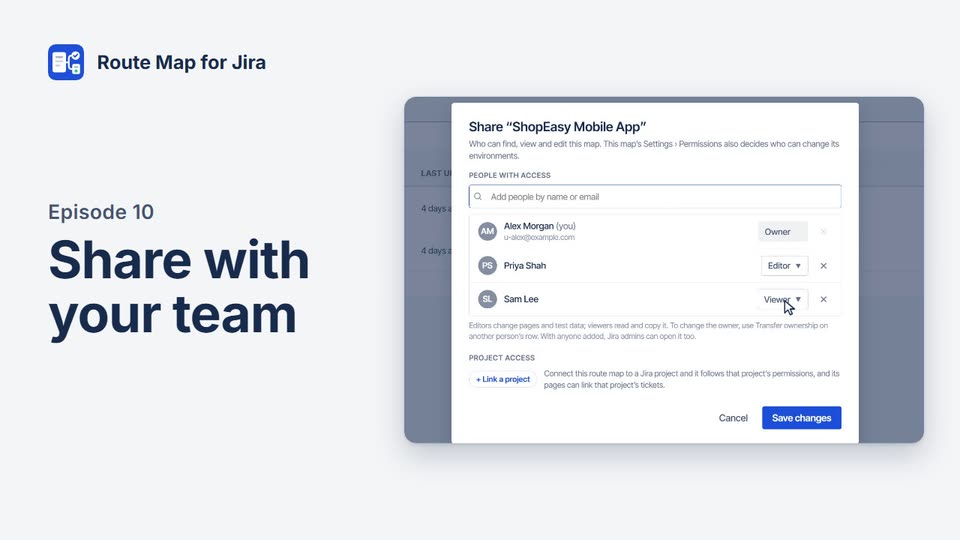
A new map can be opened by its owner alone, not even by Jira admins, until it is shared with someone or linked to a Jira project.
Roles#
| Role | Can |
|---|---|
| Owner | Everything: edit, share, change environments, delete and restore. Only the owner can transfer the map to someone else, or permanently delete it before its 7 days in Recently deleted are up. Every map has exactly one owner. |
| Editor | Add and change pages, fields and test data. |
| Viewer | Open the map, read it and copy values. |
Share a map with people#
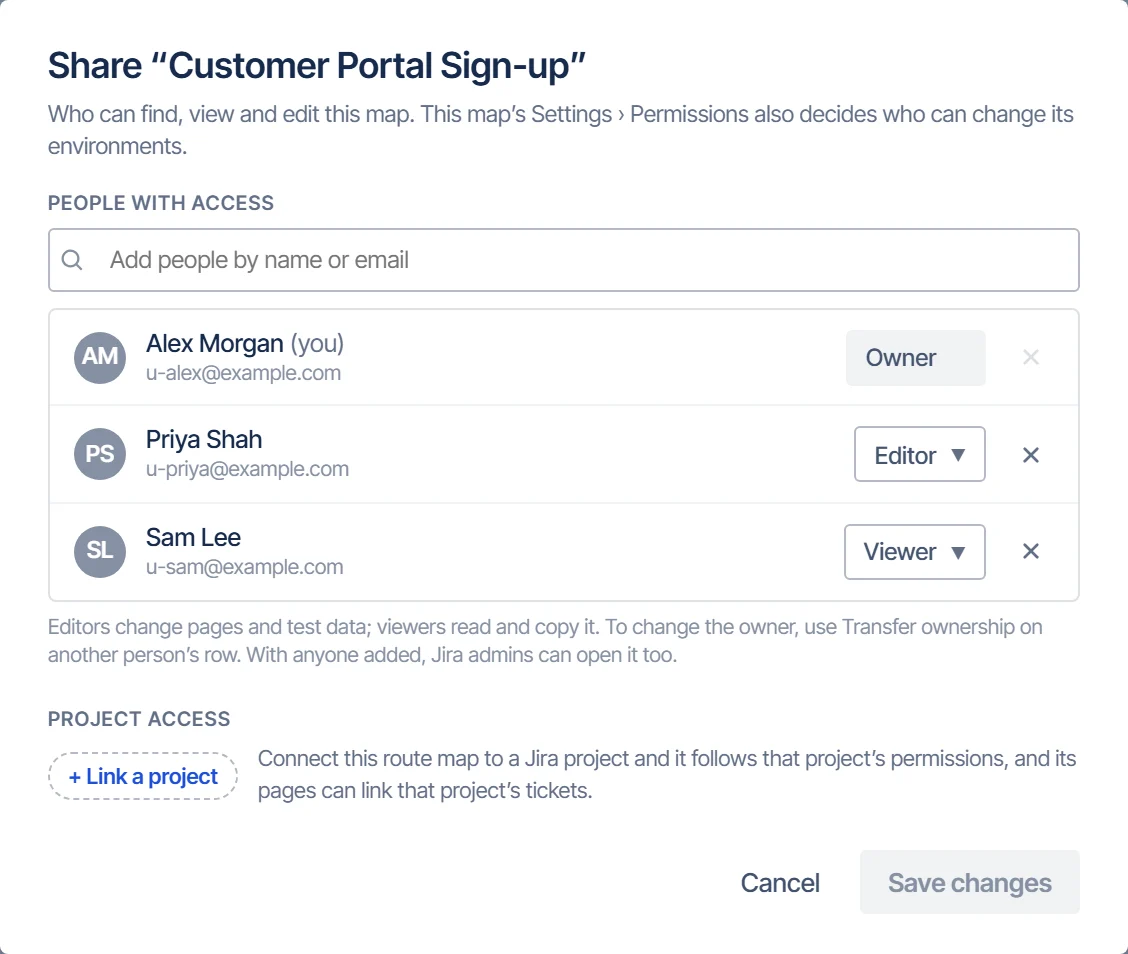
- On Home, open the map's ⋮ menu and choose Share.
- Search for people by name or email to add them. On a map linked to a Jira project, only the project's members are offered.
- Choose a role for each: Editor or Viewer. ✕ removes someone.
- Click Save changes.
To hand the map over, the owner picks Transfer ownership in that person's role menu.
Everyone who uses Route Map uses it through Jira, so you can share a map only with people who have a Jira account on your site.
What Jira admins can do#
Once a map is shared with anyone or linked to a Jira project, Jira admins can open, edit, share and delete it too. They cannot transfer it to someone else, or permanently delete it before its 7 days in Recently deleted are up.
Maps linked to a Jira project#
A map linked to a Jira project follows what each person can do in that project in Jira:
| In the Jira project, they can | On the map, they can |
|---|---|
| Browse the project | View it |
| Edit its issues | Edit it |
| Administer the project | Edit it, share it, change its environments, and delete or restore it |
| Not browse the project | Not open it, even if they were added by name |
- Jira decides this on every request, so a change to someone's permissions in Jira applies to the map straight away.
- Adding someone by name can give them more inside the project, for example letting one person who can only browse the project edit the map. It never lets in someone Jira keeps out of the project.
- You can link only a project you are a member of. Link, change or unlink the project from the map's Share dialog.
- Only a map linked to a project can have Jira issues linked to its pages, and only that project's issues. Unlinking the project, or linking a different one, removes the old project's issues from the map's pages. The Share dialog says how many before you save.
Who can change environments#
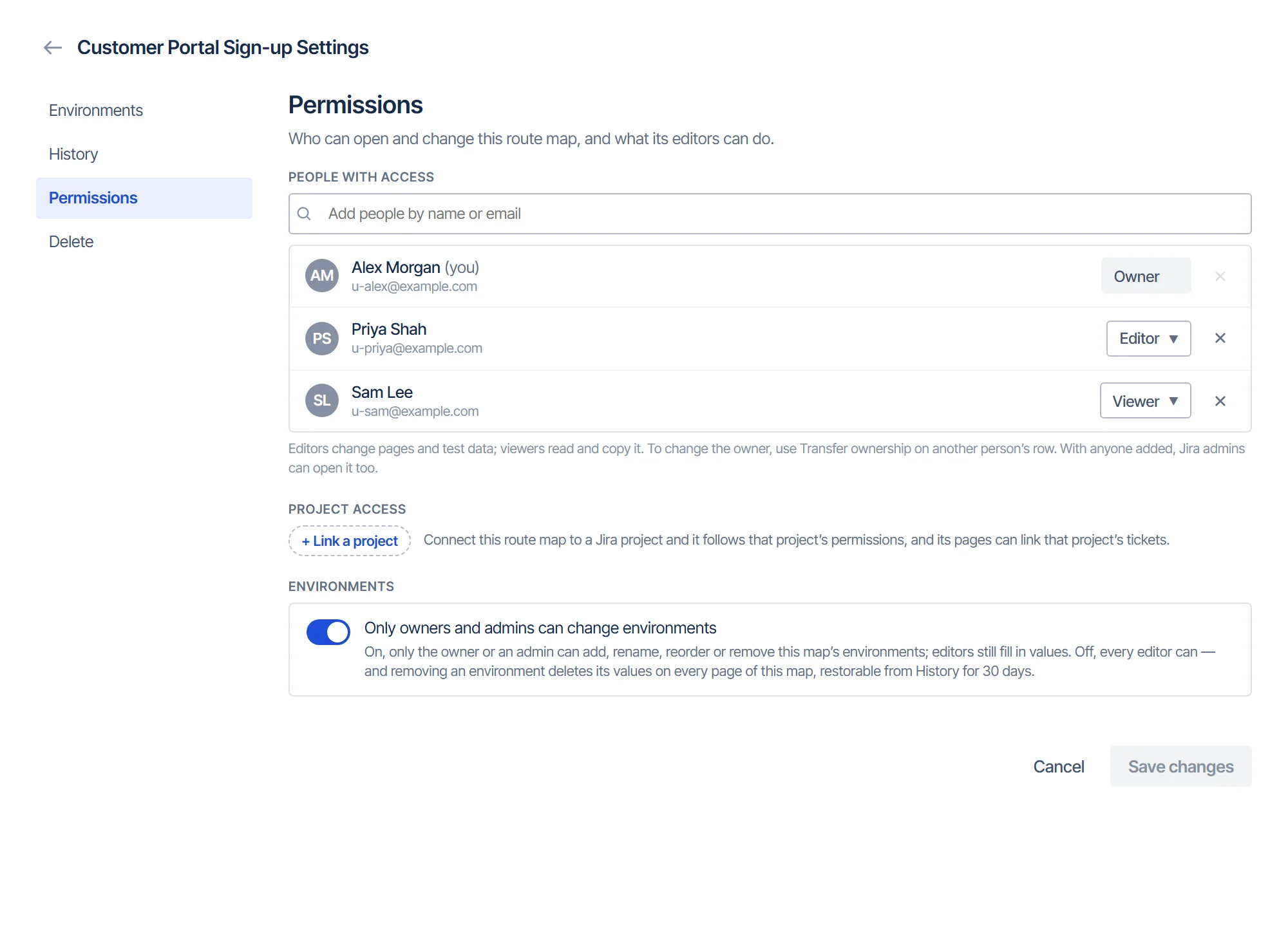
By default, only the owner and admins can add, rename, reorder or delete a map's environments; editors still fill in values. The owner or an admin can change this in the map's Settings › Permissions. See Environments.
Ask for access#
On a map linked to a Jira project, someone who can't open it, or can only view it, can ask for access from the Route map panel on one of the Jira issues the map covers. See The Jira issue panel.
- Jira emails the map's owner about the request.
- The owner, a Jira admin or an admin of the project answers in the map's Settings › Permissions: Approve, Approve as viewer, or Decline.
- Someone whose request was declined can ask again after a day.
- Someone Jira keeps out of the project is told to ask a Jira admin for access to the project instead, because no role on the map would let them in.
When an owner leaves#
If a map's owner no longer has a Jira account, Jira admins see the map in Settings › Ownerless maps and can take it over. The old owner stays on the map as an Editor.
Not available#
- Links that let anyone on the site view a map are not available.
- Inviting people who have no Jira account is not possible.