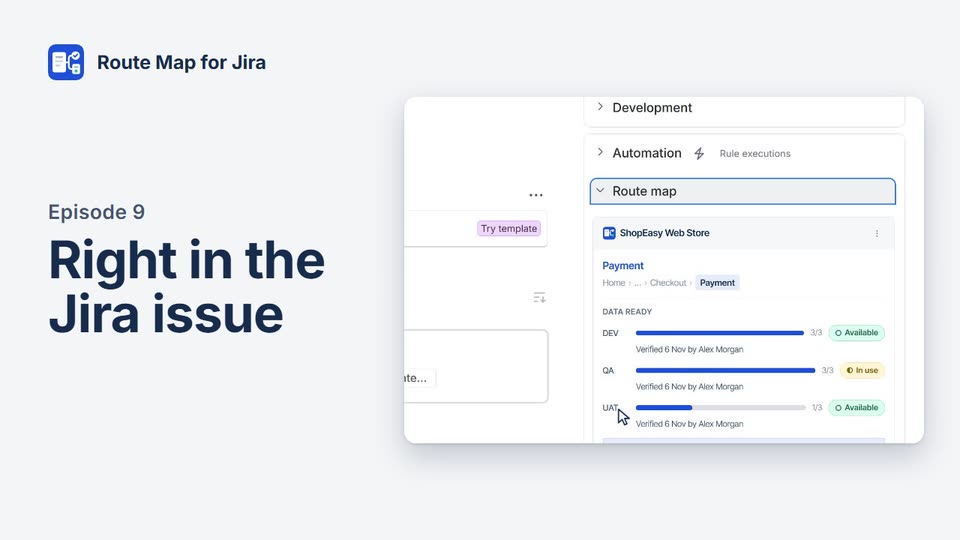
Every Jira issue has a Route map panel in its right-hand column. It shows the pages the issue is linked to and whether their test data is ready, without leaving Jira. Jira shows the panel closed at first; click it to open it.
Link issues to pages#
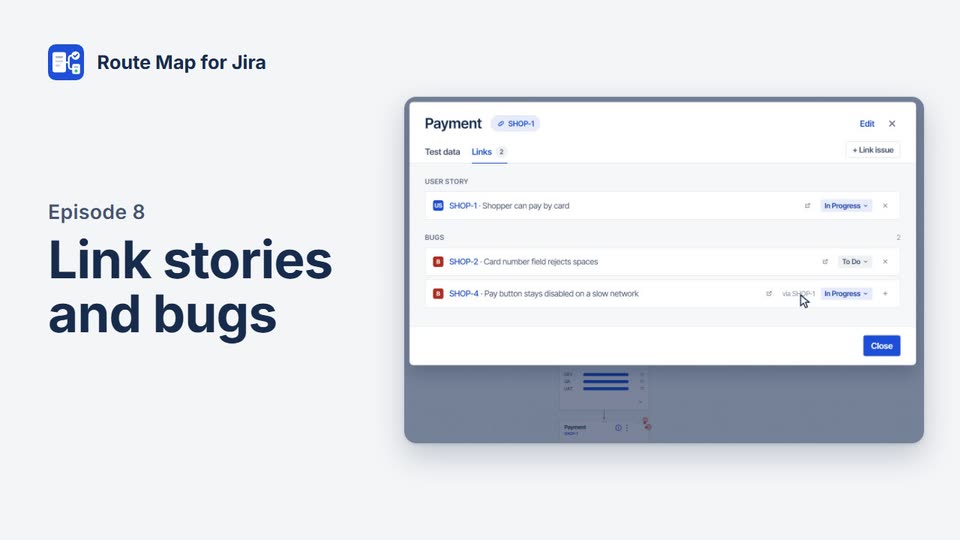
Issues can be linked only on a map linked to a Jira project, and only issues from that project. An issue is linked to a page in one of two ways.
From the page, in Route Map:
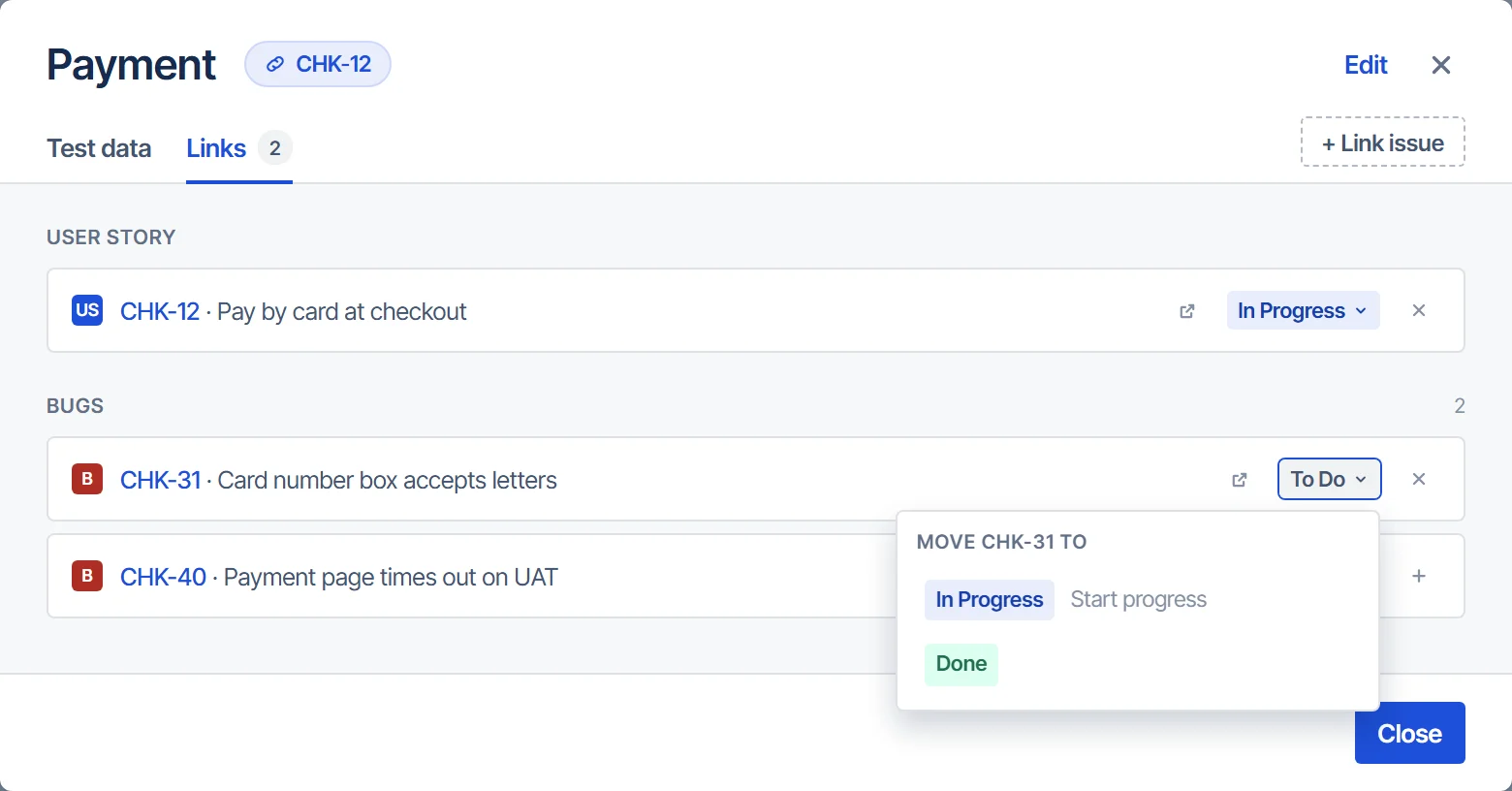
- Open the page and go to its Links tab.
- Click + Link issue and type the issue key, such as CHK-31, or paste its link.
A story or an epic becomes the page's user story if it has none yet; anything else is listed under its type.
From the issue, in Jira:
- Open the issue's Route map panel.
- Click Link to a page, then pick a map and a page.
The panel offers only maps linked to the issue's own project.
What a story brings with it#
Bugs and tasks linked to a page's story in Jira, its sub-tasks, and an epic's children show on the page's Links tab by themselves, marked via the story, such as via CHK-12. Nothing is saved for them: they leave when Jira's link does. Click + on one to keep it on the page for good.
Remove a link#
✕ on a row of the Links tab removes the link from the page. It does not change the issue in Jira.
What the panel shows#
There is one card for each page the issue is linked to:
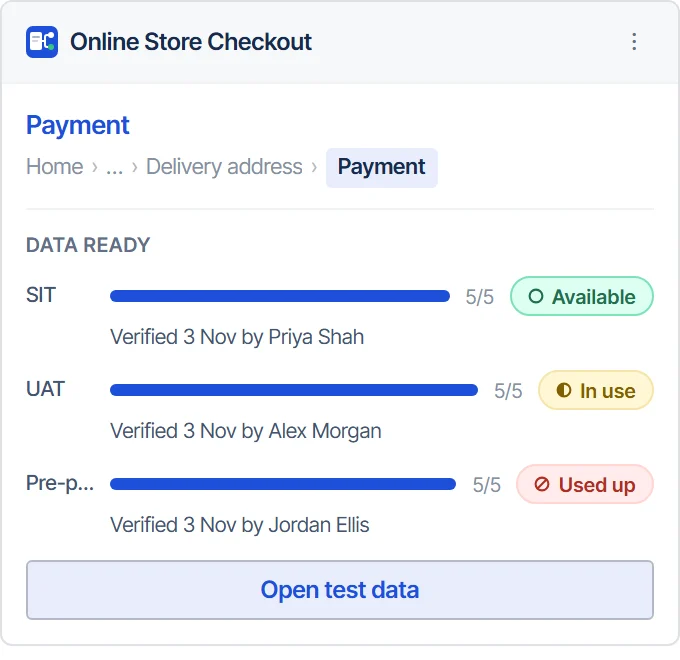
- The map and the breadcrumb: the map's name, and the path through the map to the page, such as Home › Checkout › Cart.
- Readiness in each environment: a bar and a count of how many of the page's fields have a value there, and the page's status (Available, In use or Used up) with who verified it.
- Open test data opens the page in Route Map.
- The card's ⋮ menu has Unlink and Change linked page.
If the issue is linked in Jira to a story or epic that is on a page, the panel shows that page too, and says how the two are connected, for example "This issue is blocked by CR-1, which is linked to this page". Those cards come from the story, so they have no ⋮ menu.
When no page covers the issue#
- If a map is linked to the issue's project, the panel says This story isn't linked to a page yet, with a button to open each of those maps and Link to a page.
- If no map is linked to the project, the panel says so: an issue can be linked to a page once a route map is linked to its project. To make one, create a route map and link it to the project.
Maps you can't open#
A map that covers the issue but that you can't open is shown without its name or details, as "A map you can't open". On a map linked to a Jira project, the panel lets you request access. See Sharing and roles.
Open bugs on the board#
A bug linked to a page, or brought by its story, shows on the page's card on the board as long as it is open in Jira. It goes away by itself when the bug is closed, done, cancelled, rejected, deferred or on hold. Nothing about a bug is saved in Route Map: it is read from Jira each time.
Change an issue's status from Route Map#
On a page's Links tab, the status on each row is the issue's status in Jira. Click it and pick a move, for example to Done. This changes the issue in Jira, as you, so your Jira permissions and workflow apply. If the move needs a value Route Map can't fill in, such as a resolution, the issue opens in Jira instead.