A page's fields are the things a tester types or picks on it, such as Email or Card number. Its test data is the value of each field in each environment.
Important
Use test data only. Every value is stored and shown as it was typed, and anyone who can open the map can read and copy it. Never store real passwords, real card numbers or real customer data. See Security.
Add fields to a page#
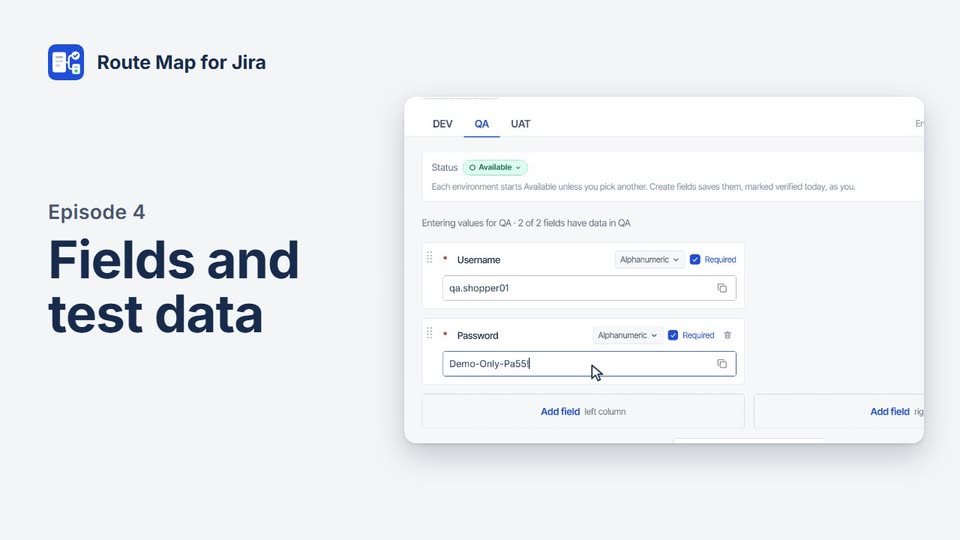
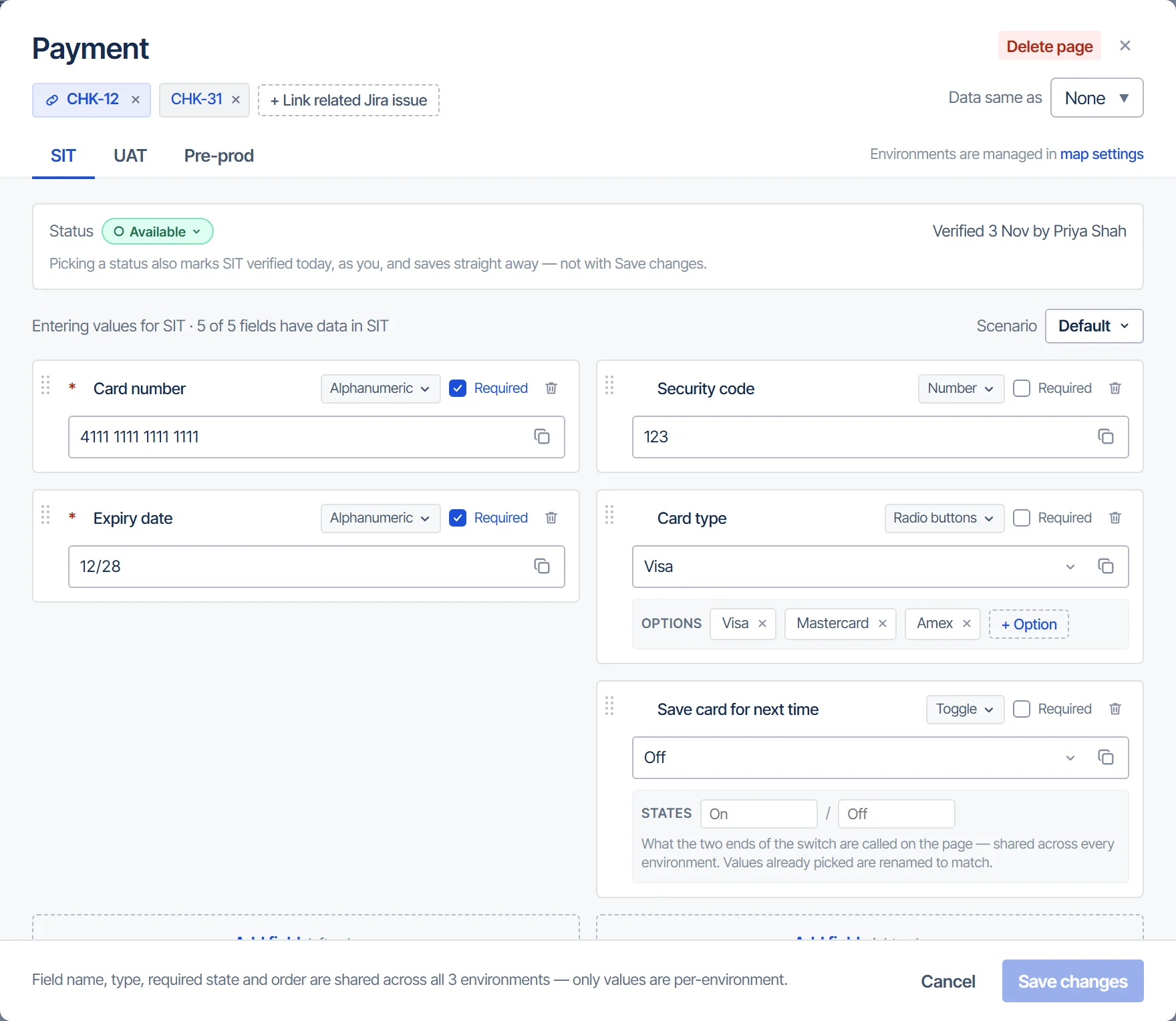
- On a new page, click Add fields on its card.
- On a page that already has fields, open it and click Edit.
On the screen that opens:
- The environment tabs (SIT, UAT, Pre-prod and so on) choose which environment you are typing values for.
- Each field card has its name, its type, a Required tick, a bin to delete it and, below, the value box with a copy button. Drag the dots on its left to move it.
- Add field at the bottom of each column adds a field there. On a new page, Copy fields from another page brings over another page's fields, without their values.
- The Note box at the bottom is for anything a tester should know about the page.
- Click Save changes (Create fields on a new page) to keep your changes, or Cancel to leave without them.
Fields are the same everywhere; values are not#
A field's name, type, Required tick and position are the same in every environment and every scenario. Only its values differ from one environment to the next.
Field types#
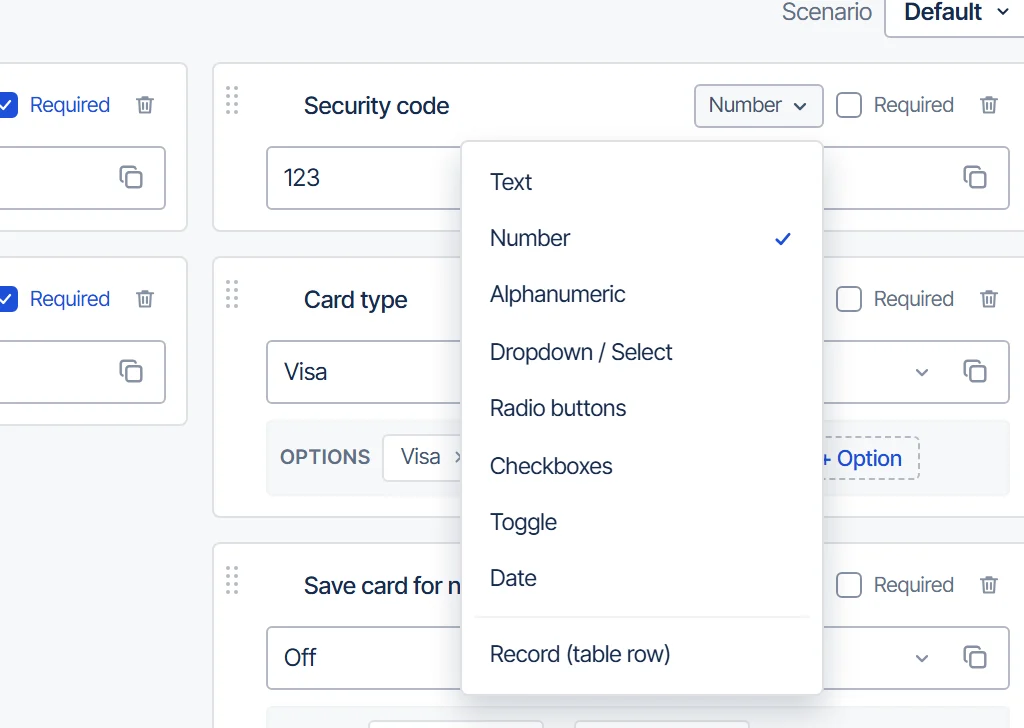
Click the type on a field card to change it.
| Type | Use it for |
|---|---|
| Text | Names and words. Takes letters and spaces only. |
| Number | Quantities, amounts and phone numbers. Takes digits, a decimal point and a minus sign. |
| Alphanumeric | Anything: email addresses, reference codes. For a password, use Secret reference. |
| Dropdown / Select | One choice from a list you write under the field. |
| Radio buttons | One choice, shown on the page as round buttons. |
| Checkboxes | One or more choices. |
| Toggle | An on or off switch. Its two states can be renamed, for example Enabled and Disabled. |
| Date | A date, picked from a calendar, in the format the application expects, such as DD/MM/YYYY. |
| Secret reference | Where a password is kept, not the password itself. Choose your password manager once for the field, then enter the item's name or path in each environment, such as UAT / checkout-user. Testers copy it and look up the password in your password manager. |
| Record (table row) | A row that must already exist in the application, such as an existing order. Write how to find a suitable one, then note which one you used in each environment. |
Dropdowns, radio buttons, checkboxes, toggles and dates are picked, not typed. Changing a date field's format rewrites the dates already saved in it.
Required fields and coverage#
- A required field with no value is marked in red on the edit screen, so gaps are easy to spot. You can still save.
- A page's coverage in an environment counts every field that has a value there, out of all the page's fields, whether they are required or not. The board's bars, the Route totals and the Jira issue panel all use this count.
- Coverage counts the Default scenario only, so an unfinished scenario never makes a page look less ready.
Data same as#
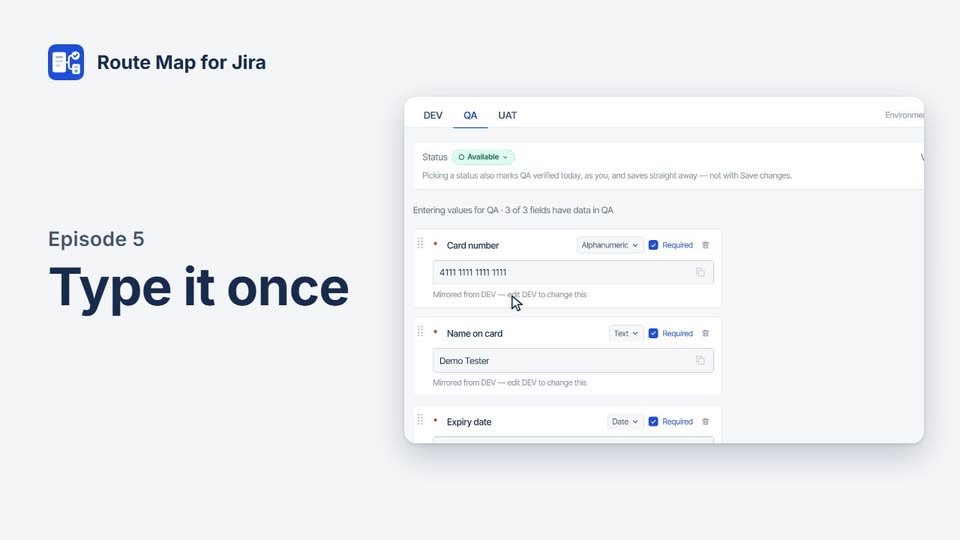
When two environments use exactly the same values, you don't need to type them twice.
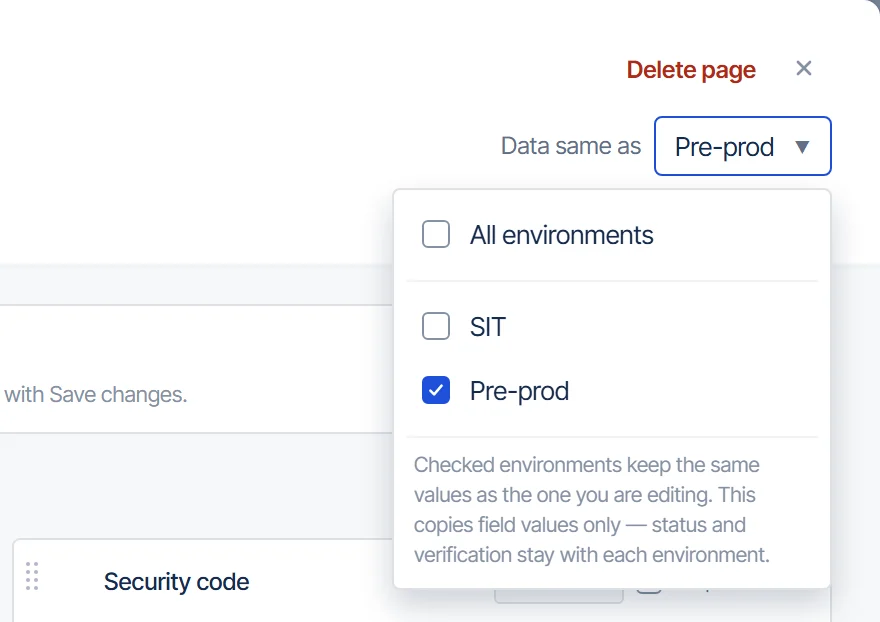
- On the edit screen, open the tab of the environment that has the values.
- Click Data same as at the top right and tick the environments that should match it. All environments ticks every one at once.
From then on, every value typed there goes into all of them. Untick an environment to go back to the values it had of its own. Only values are shared: each environment keeps its own status and verification.
Scenarios#
A page often needs different data for different cases: a card that is accepted, one that is declined, one that has expired. Each case is a scenario. Default is the normal set of values every page starts with.
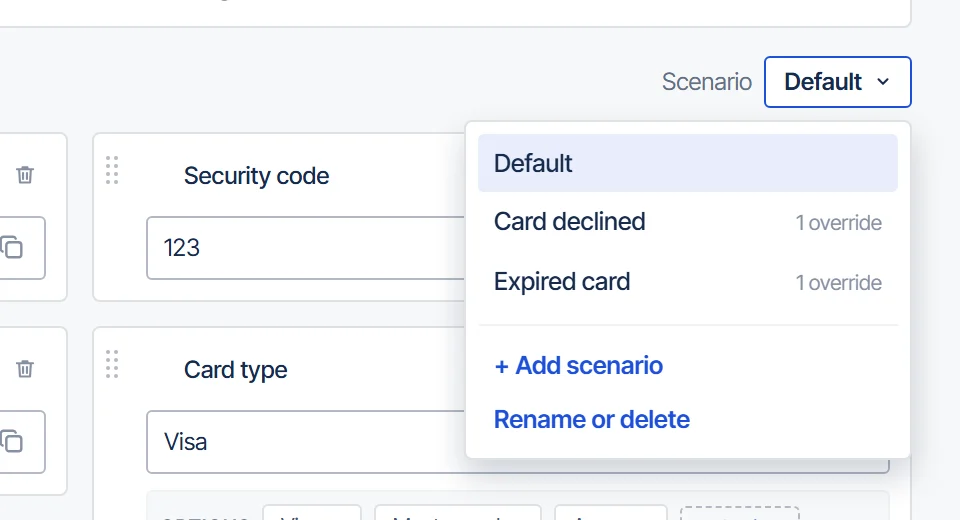
- On the edit screen, open the Scenario menu and click + Add scenario. Give it a name, such as "Card declined".
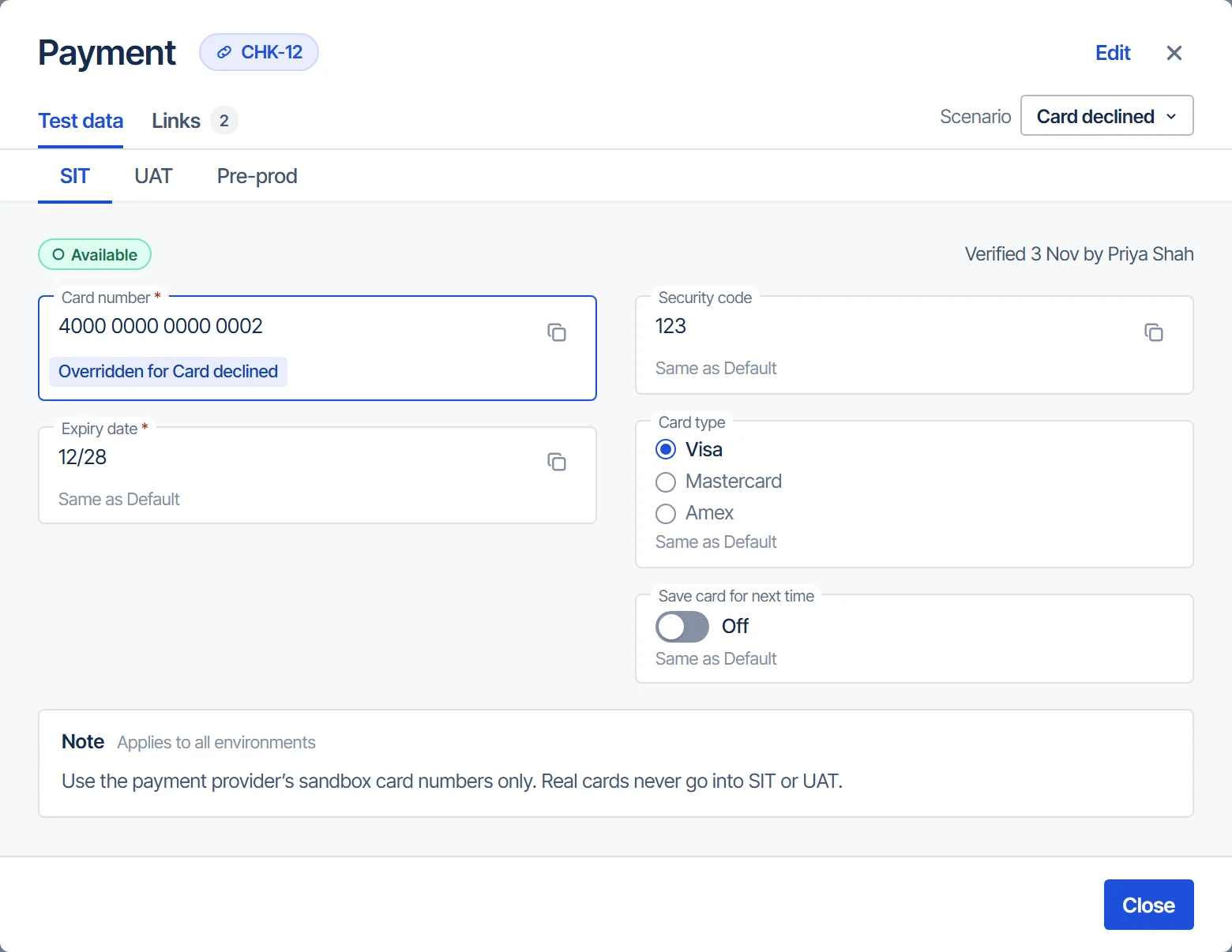
- Every field now says Same as Default. Click Override on a field to give it a different value for this scenario.
- Revert to Default undoes an override. Rename or delete in the same menu manages the scenarios themselves.
When you read a page, pick the scenario at the top right. Fields that differ from Default are marked.
Page notes#
The Note at the bottom of the edit screen is for anything a tester should know about the page, such as "Use a new browser session" or "The SMS code is always 123456 in SIT". One note covers every environment and every scenario. View pages, which have no fields, can still have a note.
Status and verification#
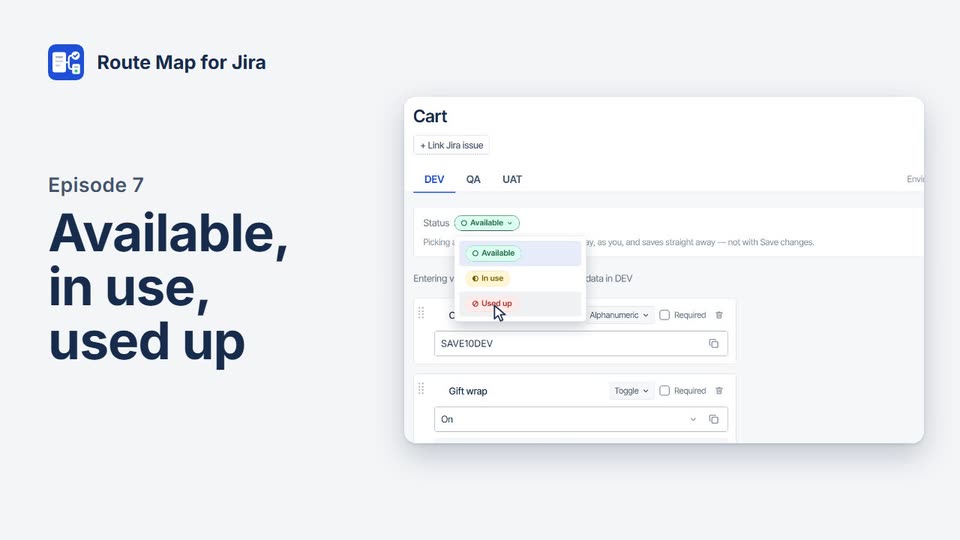
Test data runs out: an order is cancelled, a coupon is used, an account gets locked. So each environment of a page has a status:

| Status | Means |
|---|---|
| Available | The data is ready to use. |
| In use | Someone is using it right now. Check with them first. |
| Used up | It has been used and can't be used again. New data is needed. |
- Pick the status on the edit screen. It saves straight away, without Save changes, and records that you checked the data, for example "Verified 21 Oct by" and your name.
- To confirm the data again later, pick the same status again.
- If someone changes the values after they were verified, the page says so next to the verification, so you know to check again.
- Each status shows as a word with its own mark, as well as its colour, so it never depends on colour alone.
- View pages have no status, because they have no data to use up.
Read and copy test data#
Click the bars on a card, or choose Open page from its ⋮ menu. Reading never changes anything.
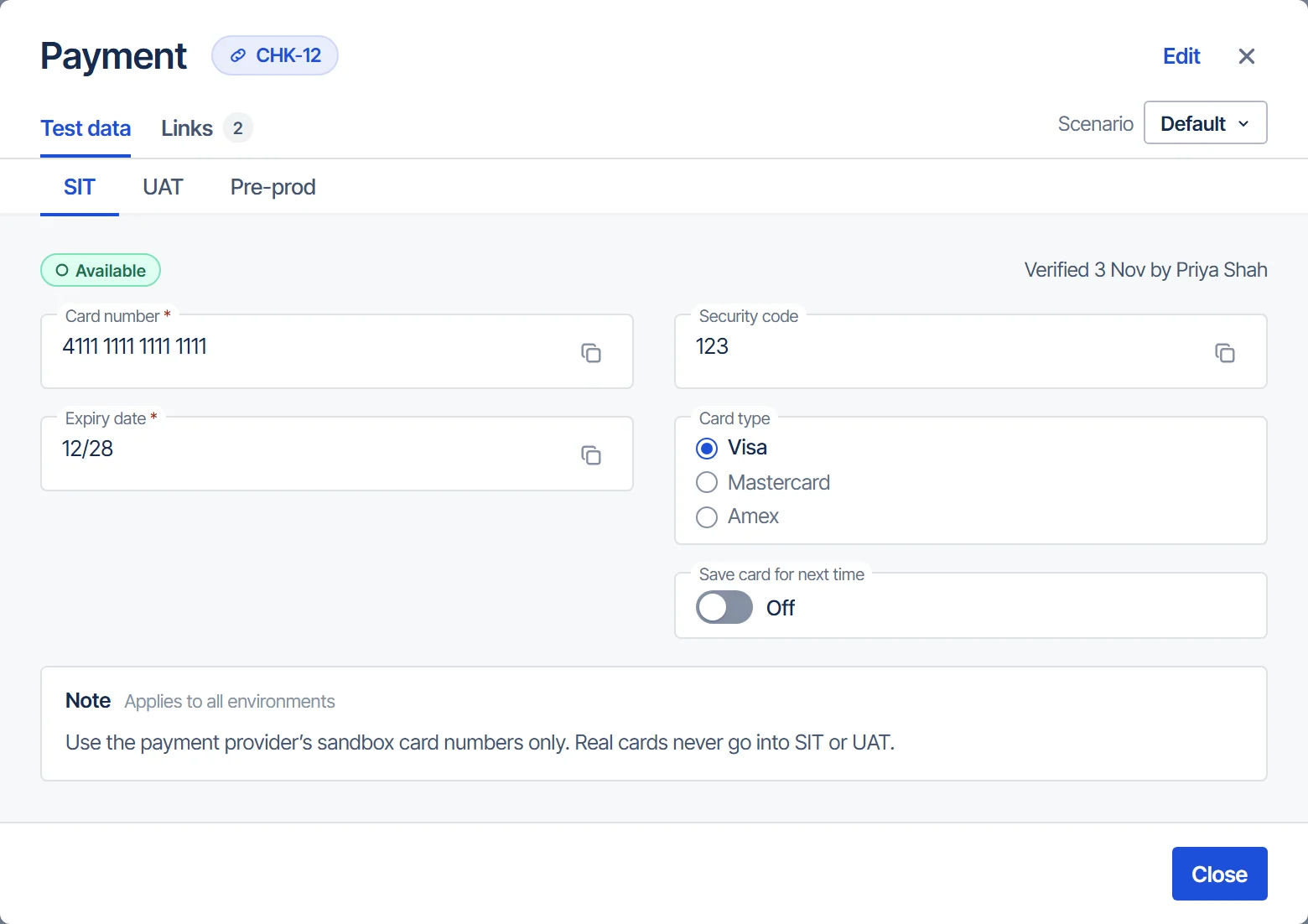
- Pick the environment from the tabs, and the scenario from the menu at the top right.
- The copy button beside each value copies it, ready to paste into the application.
- The status and the line beside it say whether the data can be used, and who last checked it.
- Edit opens the edit screen, if you can change the map. Links shows the page's Jira issues; see The Jira issue panel.
Earlier versions of a page#
Each time a page is edited, the version it replaces is kept for 7 days. Earlier versions on the page's ⋮ menu shows them and puts one back. Anyone who can edit the map can use it.
On a phone#
Open Route Map on a phone and you get a simpler view for testers on the move: pick a map, pick a page, and copy its values with one tap.
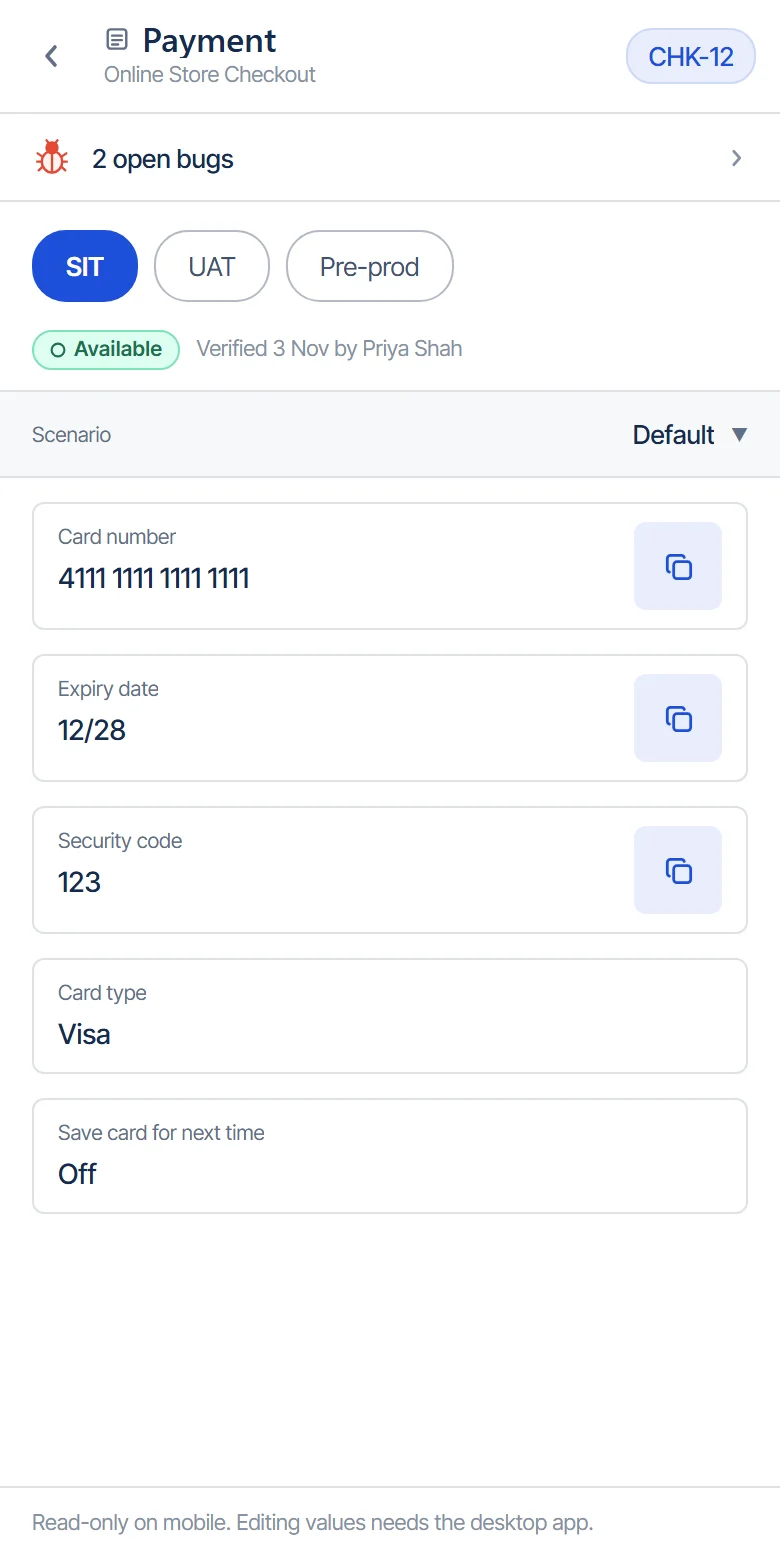
- Tap an environment to switch to it, and use the Scenario menu to pick a scenario.
- The phone only reads. Adding or changing anything is done on a computer.
- Pages you opened recently, including their values, stay readable on the phone for a while if you lose signal, with the time they were last updated.